
According to Zensec, over 90% of cyberattacks begin with phishing. And with increasing instances of scammers using generative AI to enable phishing, it is more valuable than ever to stay up-to-date with cybersecurity best practices.
Salesforce is moving certain users to phishing-resistant MFA. In plain terms, this means some users need to prove they are physically at the device they are using to log in. A normal six-digit authenticator code is NOT the same thing as a passkey.
What is a Passkey?
A passkey is a secure login method that is saved on a device or in a passkey-capable password manager. It normally uses something like Window Hello, Touch ID, Face ID, a phone passcode, or a physical security key. It is important to note:
- A passkey is not just a six-digit code from an authenticator app.
- A passkey can be stored on a PC or laptop, on a phone, or in a supported password manager such as 1Password or Bitwarden.
- Not every authenticator app can store passkeys. Some only generate 2FA codes, which is not enough for this requirement.
Who will this effect?
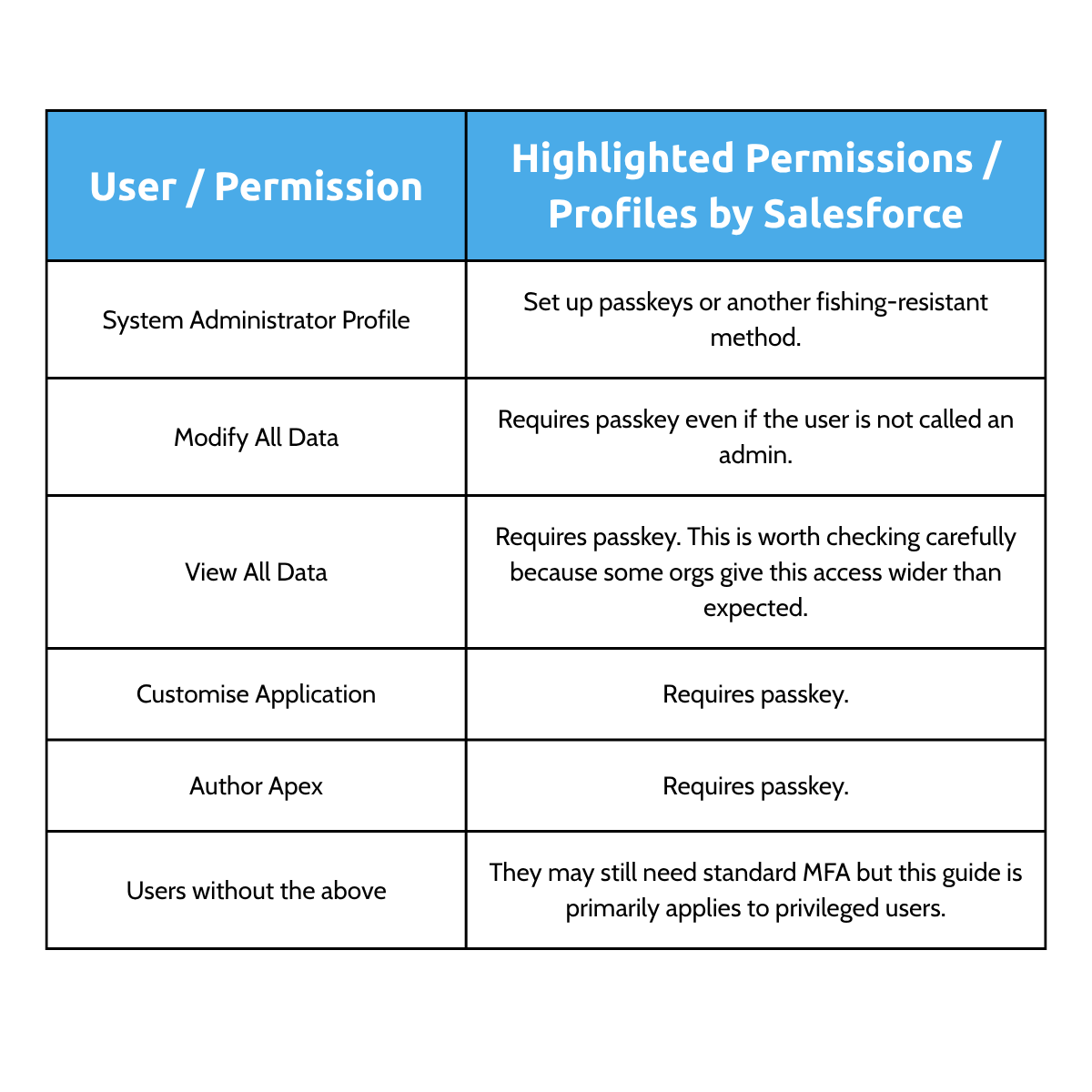
This is mainly aimed at privileged access. That includes Salesforce admins and users with powerful permissions that can view or change large parts of the system.
Things to do before setting up Passkeys for your Salesforce Org
These are the steps to be completed by your Salesforce admin. Without completing these steps first, users will not be able to add a passkey.
- Log into Salesforce as an admin.
- Go to Setup.
- Go to Identify, then Identity Verification.
- Tick Let users verify their identity with a built-in authenticator such as Touch ID or Windows Hello.
- If you are allowing physical security keys, also Tick Let users verify their identity with a physical security key (U2F or WebAuth security keys are needed for password manager).
- If required for the Org, tick Allow passwordless login with passkeys. Do not assume this removes every login step; test the behaviour in your Org.
- Click Save.
Adding a Passkey to your PC or Laptop
- Log into Salesforce.
- Click your profile picture or avatar in the top right.
- Select Settings.
- Go to Advanced User Details.
- Scroll down to Built-in Authenticators section.
- Select Register or Add, depending on what Salesforce shows in your Org:
- Follow the prompt from the device. This may ask for Windows Hello, Touch ID, Face ID, fingerprint, or the device PIN.
- Once complete, check that the new built-in authenticator appears on the list.
Adding a Passkey using a mobile device
- Go back to the Built-in Authenticators section in Salesforce.
- Select Register or Add.
- When the device prompt appears, choose the option to ‘use another device’ or ‘add a passkey with a mobile device’.
- Select your mobile device, iPhone, iPad, or Android device if Salesforce shows that option.
- Salesforce should now show a QR code.
- Scan the QR code using the place you want to hold the passkey. This could be the iPhone Passwords app, Android/Google/Samsung password manager, or an approved passkey manager like 1Password or Bitwarden.
- If you scan with the normal camera, the phone should offer to save the passkey to the native password/passkey app on the device. On iPhone, this is usually Passwords/iCloud Keychain. Android devices have their own equivalent, depending on the device and account setup.
- Approve the save using Face ID, fingerprint, or device passcode.
- Give it clear name, for example iPhone passkey or Android mobile passkey.
- Check that Salesforce now shows the second passkey in the list.
Other things to note:
- Setup at least two passkeys. Having one on your PC and one on your mobile device is the most practical and safe option.
- A passkey stored on one PC may not automatically work on a different PC unless it is synced through an account or passkey manager. This is why having a mobile option is essential.
- If you replace your phone or laptop, add and test the new passkey before wiping or returning the old device.
- If you use 1Password, Bitwarden, Apple Passwords, or another password manager; make sure you are saving an actual passkey and not just a one-time code.
Need more support?
If you are already a customer, you can contact our support email for additional guidance. If you aren’t an existing customer but are looking for additional support, fill out our short Managed Service Enquiry Form to explore the ways we can help optimise your Salesforce setup and improve business practices.